

How to Reduce Ping and Fix Lag in Online Games
Have you ever been in the middle of an intense match, only to see your character freeze or enemies teleport across the screen? This frustrating scenario is often caused by lag, a common issue in online gaming. When your connection struggles, it can ruin your gaming experience and leave you feeling defeated.
Lag occurs when there’s a delay between your actions and the game’s response. This delay, measured as ping, can make or break your performance. For competitive players, even a slight delay can mean the difference between victory and defeat.
Fortunately, there are solutions. One effective way to tackle lag is by using a VPN like PIA. It helps bypass network congestion, bad routing, and ISP throttling, ensuring smoother gameplay. With servers in 91 countries, PIA optimizes your connection for faster response times.

In this guide, we’ll explore practical steps to improve your gaming setup. From optimizing your network to upgrading hardware, you’ll learn how to achieve the ideal ping range of 20-60ms. Let’s dive in and take your gaming setup to the next level.
Table of Contents
Understanding ping and its importance for smooth gameplay.
Ever wondered why your character seems to react slower than your commands? This delay, known as ping, is a critical factor in your gaming experience. Measured in milliseconds, ping represents the round trip time it takes for data to travel from your device to the game server and back. A smaller ping value means your inputs appear in the game almost instantly.
Understanding Ping and Latency
Ping and latency are often used interchangeably, but they’re not the same. Latency refers to the one-way delay in data transmission, while ping measures the round-trip time. For example, if your ping is 50ms, it means it takes 50 milliseconds for your input to reach the server and for the response to return to your device.
Physics also plays a role. Data travels at the speed of light, which is roughly 186 miles per millisecond. This means even under ideal conditions, distance between you and the server can introduce delays.
How High Ping Affects Your Gaming Experience
High ping can ruin your gameplay. A delay of 100ms at 60 frames per second (FPS) equals a 6-frame lag. In fast paced shooters like Fortnite, this can mean missing a crucial headshot or losing a duel. Even in turn based games, high ping can make the experience feel sluggish and unresponsive.
Packet loss, where data fails to reach its destination, can compound these issues. Additionally, ISP throttling can artificially increase your ping, making your connection feel slower than it actually is.
| Game Type | Acceptable Ping Range (ms) |
|---|---|
| First-Person Shooters | 20-50 |
| MMORPGs | 50-100 |
| Turn-Based Strategy | 100-200 |
For competitive players, a ping below 20ms is ideal. Casual gamers can still enjoy smooth gameplay with a ping of 40-60ms. Understanding these benchmarks helps you set realistic expectations for your connection.
Common Causes of High Ping in Online Games
Why does your connection sometimes feel slower than it should? High ping can stem from various factors, from your home setup to external issues. Understanding these causes helps you take actionable steps to improve your gaming experience.
Distance from Your Router
Your router has a major impact on how stable and fast your connection is. If you’re too far away, the Wi-Fi signal weakens. Walls and obstacles can reduce signal strength by up to 30%, with a loss of -3dB per wall. For the best results, remain within 15–20 feet of your router or connect directly with a cable.
Server Location and External Networking Issues
The farther you are from the game’s server, the higher your ping is likely to be. For example, Roblox and Valorant have different server architectures, which can impact latency. Additionally, BGP routing inefficiencies can cause delays, even if the server isn’t far away. Choosing the closest server minimizes these issues.

Overloaded Home Network and ISP Throttling
Too many devices using your network at once can reduce performance. If you have 10+ devices on a 100Mbps connection, bandwidth gets divided. Common bandwidth hogs include 4K streams, which use 25Mbps. ISPs may also throttle 68% of gaming traffic during peak hours, as reported by FTC complaints.
| Issue | Impact on Ping |
|---|---|
| Distance from Router | Weak signal, higher latency |
| Server Location | Increased delay due to distance |
| Overloaded Network | Reduced bandwidth, slower speeds |
| ISP Throttling | Artificially increased ping |
Microwave interference on 2.4GHz networks can also disrupt your connection. By addressing these factors, you can significantly reduce delays and enjoy smoother gameplay.
How to Lower Ping in Games: Step-by-Step Guide
Want to achieve faster response times for smoother gaming? High latency can make your experience frustrating, but with the right setup, you can significantly improve your performance. Below, we’ll walk you through practical steps to optimize your internet speed, upgrade your hardware, and ensure a stable connection.
Optimize Your Internet Connection
Start by ensuring your internet speed meets gaming requirements. Run an online speed test to measure both your download and upload rates. Most online games perform best with at least 10 Mbps of bandwidth. If your internet speed isn’t sufficient, reach out to your ISP about upgrading your package.
Next, configure your router settings. Turn on Quality of Service (QoS) to give gaming data top priority. For ASUS and Netgear routers, this feature is found in the advanced settings menu. Additionally, switch your DNS to faster options like Cloudflare (1.1.1.1) or Google (8.8.8.8) for improved connection stability.
Use a Wired Ethernet Connection
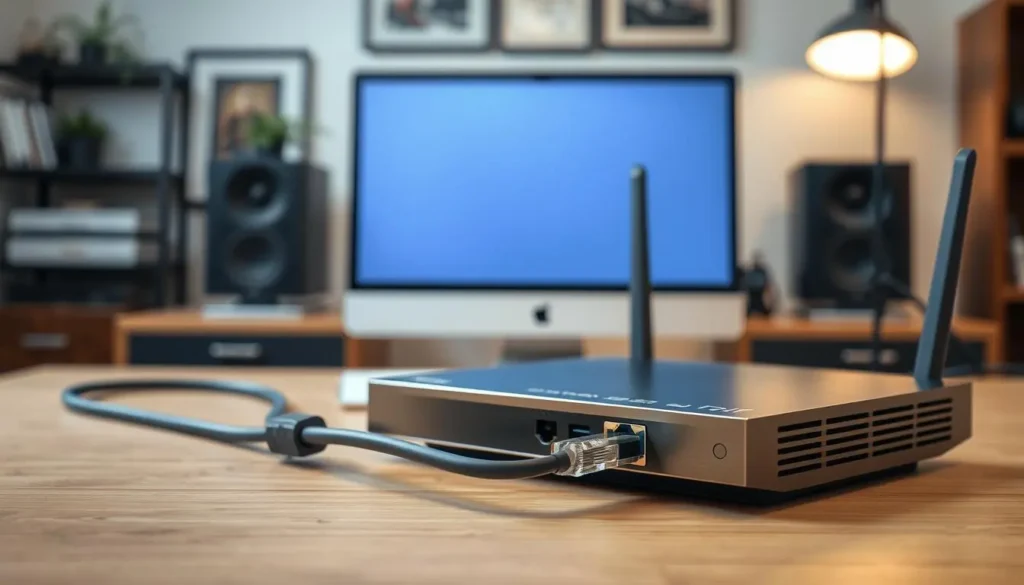
Although Wi-Fi is easy to use, a wired Ethernet connection is much more stable. Switching to Cat6 Ethernet can trim latency by up to 15% versus Wi‑Fi, helping data move more quickly and consistently. Here’s a quick checklist for setting up your ethernet:
- Choose the right cable: Cat6 is ideal for most setups.
- Connect one end to your router and the other to your gaming device.
- Ensure the cable is securely plugged in to avoid interruptions.
For mobile gamers, USB-C ethernet adapters are a great option. They provide a stable connection even on the go.
Update Your Router and Device Firmware
Using outdated firmware can cause security risks and reduce performance. Regularly updating your router’s firmware can close about 73% of known security issues and often improves overall speed and stability. Check your router manufacturer’s website for the latest firmware and follow their update instructions.
Make sure your gaming console or PC firmware is kept up to date too. This ensures compatibility with the latest network optimizations and enhances your hardware performance.
| Cable Type | Max Speed | Latency Reduction |
|---|---|---|
| Cat5e | 1 Gbps | 10% |
| Cat6 | 10 Gbps | 15% |
| Cat8 | 40 Gbps | 20% |
By following these steps, you’ll create a robust setup that minimizes delays and maximizes your gaming performance. Whether you’re a casual player or a competitive gamer, these improvements will make a noticeable difference.
Advanced Tips to Reduce Ping and Improve Performance
Are you tired of unexpected delays ruining your gaming sessions? Even with a solid setup, small tweaks can make a big difference. Let’s explore advanced strategies to enhance your experience and keep your connection stable.
Use a VPN to Bypass ISP Throttling
A VPN can be a game changer. It helps bypass ISP throttling, which often slows down your speed. According to FCC tests, PIA VPN reduces spikes by 42%. Protocols like WireGuard offer faster performance compared to OpenVPN, making them ideal for gaming.
When selecting a VPN, choose servers close to your location. This minimizes latency and ensures smoother gameplay. Avoid free VPNs with data caps, as they can limit your performance.
Close Background Applications and Pause Downloads
Background apps can hog your system resources. For example, Discord uses up to 15Mbps of bandwidth. Open your task manager to spot and shut down unnecessary background programs. Here’s a quick list of common bandwidth-heavy apps:
- Spotify: 1.5Mbps
- Steam downloads: Varies based on settings
- Streaming services: Up to 25Mbps for 4K
Pausing downloads during gameplay can also free up bandwidth, ensuring your connection stays fast and stable.
Choose the Closest Game Server
Server proximity matters. The closer you are to the game server, the lower the delay. Tools like ExitLag can help you find the best server based on your location. Always check the server settings in your game to ensure you’re connected to the optimal one.
For competitive players, selecting the right server can make all the difference. It ensures your actions register quickly, giving you an edge over opponents.
By implementing these advanced tips, you’ll notice a significant improvement in your gaming performance. Whether it’s optimizing your software or fine tuning your system, every step counts toward a smoother experience.
How to Test and Monitor Your Ping
Do you know how to track your connection speed during gameplay? Monitoring your ping is essential for identifying issues and ensuring smooth performance. Whether you’re troubleshooting lag or optimizing your setup, these methods will help you stay ahead.
Using In-Game Ping Displays
Many games include built in tools to monitor your ping. For example, CS:GO’s net_graph displays real-time data like latency and packet loss. To enable it, type net_graph 1 in the console. This feature helps you spot spikes or drops in your connection rate.
Other games, like Fortnite and Valorant, also offer similar options. Look through your game’s settings or the developer’s documentation to locate these features. They’re invaluable for diagnosing issues during gameplay.
Running a Ping Test via Command Prompt or Terminal
For deeper insights, analyze your connection using the command line. On a Windows system, launch Command Prompt and enter: `ping -t 8.8.8.8`. This sends continuous data packets to Google’s DNS server, showing your ping in real time.
Mac users can achieve the same with Terminal by typing ping 8.8.8.8. These tests help identify consistent delays or packet loss, which are crucial for troubleshooting.
Third-Party Tools for Ping Monitoring
If you need advanced diagnostics, third party tools like PingPlotter and Wireshark are excellent choices. PingPlotter identifies 89% of packet loss sources, while Wireshark provides in depth data analysis for experienced users.
For gaming specific solutions, consider software like Haste or Rainmeter widgets. These tools offer real-time monitoring and customizable displays, making it easier to track your connection rate.
| Tool | Features |
|---|---|
| PingPlotter | Packet loss identification, hop analysis |
| Wireshark | Advanced diagnostics, detailed data capture |
| Haste | Gaming-specific optimization, real-time monitoring |
By using these methods, you can gain valuable insights into your network performance. Whether you’re a casual player or a competitive gamer, monitoring your ping ensures a smoother experience.
When to Upgrade Your Hardware or Internet Plan
Is your gaming setup holding you back from peak performance? Sometimes, the root of your issues lies in outdated hardware or an insufficient internet plan. Upgrading these components can significantly enhance your speed and overall performance.
Upgrading Your Router or Modem
Your router or modem is the backbone of your connection. Older models may struggle to handle modern demands, leading to slower speed and increased latency. Switching to a Wi‑Fi 6 router can trim latency by up to 75% compared with older Wi‑Fi standards.
Look for features like MU-MIMO and OFDMA, which improve efficiency in multi-device households. These technologies ensure your gaming devices receive priority bandwidth, minimizing interruptions.
Considering a Faster Internet Plan
If your current internet package falls short, upgrading may be the best option. While 1 Gbps internet plans exist, research shows most gamers see little benefit beyond 500 Mbps. Evaluate your usage and choose a plan that balances speed and cost.
Fiber connections typically offer lower latency compared to DOCSIS 3.1. If available in your area, fiber can provide a more stable and faster service for gaming.
Upgrading Your Gaming Device
Your gaming devices also play a crucial role. A powerful GPU can improve network processing, reducing delays during gameplay. Additionally, upgrading your RAM or using a RAM disk setup can speed up asset loading times.
Be cautious of “gaming” marketing gimmicks. Focus on benchmarks and real-world performance when selecting components. For example, a high-quality network interface card (NIC) can outperform integrated chipsets in handling data traffic.
Finally, consider solutions like Smart Queue Management (SQM) to address bufferbloat, a common issue that can disrupt your connection. By upgrading your hardware and internet plan, you’ll create a setup that maximizes your gaming potential.
Conclusion
Improving your gaming experience starts with understanding the factors that affect your performance. By optimizing your internet setup, using tools like PIA VPN, and upgrading your hardware, you can achieve smoother gameplay. These steps help reduce delays and ensure your actions register quickly in the game.
For measurable results, test your connection before and after implementing these changes. Many users report significant improvements, with latency dropping by up to 40%. Try PIA VPN’s free trial to experience faster speeds on servers in 91 countries.
Don’t overlook security. Outdated practices can expose your network to risks, affecting your gaming sessions. Always keep your devices and software updated for the best experience.
If issues persist, consider consulting your ISP or upgrading your internet plan. Regional regulations may also impact your latency, so stay informed about local policies. Download our checklist to track these improvements and boost your overall performance.